



Total 2217 characters, estimated reading time: 6 minutes.
Windows automatic updates are supposed to improve system security and stability, but but many users are getting them as a result. Experiencing frequent blue screens, lags and even black screens, affecting normal use. After each system update, there may be driver incompatibility, file corruption and other problems, so that people can not prevent, I often develop in the process of use, so I had to search for a variety of methods, has been perfectly resolved, and share it here, in addition to we let the computer to reject the blue screen, we can also combine theRyTuneX: Bringing the Full Optimization Experience to Windows SystemsMake our computer access silkier.
Tip: Due to network restrictions, the YouTube videos on this page may not load in mainland China.
To view, please open this page in an internet environment with access to YouTube.
A full graphic description is provided below and can be read on.
If your computer is experiencing a blue screen due to a Windows update, here are some of the Emergency solutionsIt can help you to restore your system stability, so you may want to give it a try.

⚠️ Blue screen after computer update? Try these methods!
1️⃣ Reboot computer
Sometimes, a blue screen can be a temporary glitch, a simple reopen It will be back to normal. You can try Long press the power button Shut down your computer and restart it.
2️⃣ Enter Safe Mode
If the blue screen after the computer forced reboot also can not enter the system normally, as a last resort we can try to enter the security model Perform the restoration:
- At computer startup, thePress F8 continuously Go to Advanced Boot Options (some computers require pressing Shift + F8 maybe Entering Recovery Mode with an Installation Disk).
- option “Safe Mode” Go into the system and try to fix the problem.
3️⃣ Restore to the last stable system state
If your computer was running fine before the update, you can use the system restore Fall back to the previous state:
- Entering Safe Mode After pressing Win + R key, enter
rstrui.exeEnter. - Select one Recent System Restore PointsClick the next step, follow the prompts to restore.
- Wait for the system recovery to complete and restart your computer.
4️⃣ Updating or uninstalling drivers
certain (things) Incompatible drivers It may cause a blue screen, especially Graphics cards, sound cards, network cards Driver. Can try:
- Entering Safe Modepress Win + XSelection device managerThe
- exist Display adapters, sound devices, network adapters Find the most recently updated driver in the
- right click Update driverIf the problem persists, try Uninstalling the driver and reinstalled.
5️⃣ Perform system file checking
Windows may have corrupted some system files due to an update. SFC tools to fix:
- in order to Administrator mode show (a ticket) Command Prompt (CMD)The
- Type the following command and enter:
sfc /scannow- Wait for the system to scan and repair the corrupted files and restart your computer when it is done.
6️⃣ Disable Automatic Updates (Interim Program)
If the blue screen is caused by a system update, you can Temporary suspension of updates::
- show (a ticket) set upEnter Update and Security → Windows UpdateThe
- exist Change of event time Under Options, select Pause to updateThe maximum suspension period is 35 days.
Completely disable Windows automatic updates and eliminate blue screens! Up to almost 30 years
If you've Tired of Windows' frequent automatic updatesor repeatedly encountered Blue screen, lag, black screen after update of the problem.The best solution is to turn off automatic updates completely!So the ultimate solution here is to disable updates infinitely close to permanently, but of course, we have a big update at the right time, and we can also manually update to ensure that the system is patched to ensure normal and safe use. We continue to look down.

For your convenience, I have prepared a Disable BAT Scripting for Windows Updates in One ClickNo need to manually modify complex system settings.Run it to permanently disable Windows updates, to avoid subsequent blue screen problems.
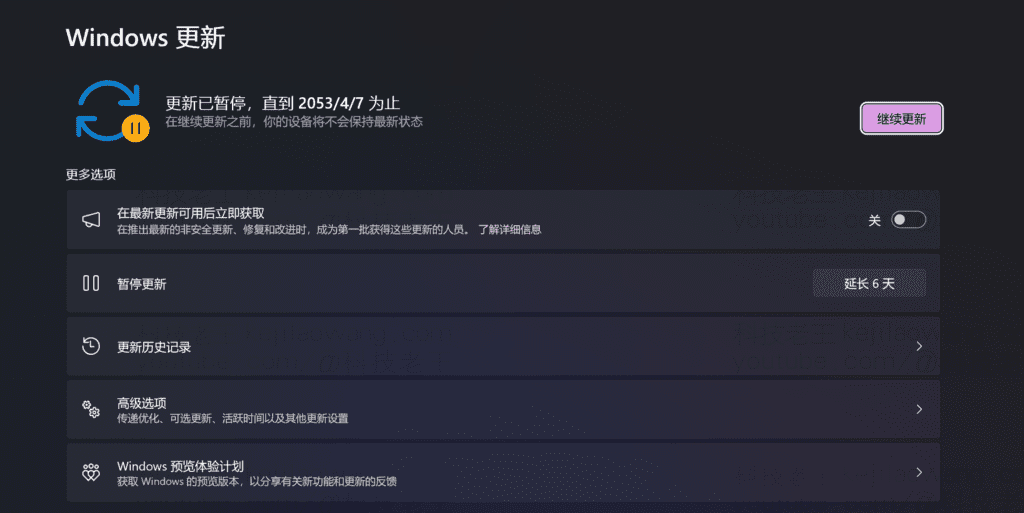
✅ How to disable Windows Update with one click
- downloading
Disable_Windows_Update.batFiles. (Please leave a message if you can't open Google Drive) - right click in order to managerial identity Run the script.
- Waiting for execution to complete, system updates will be completely disabled!
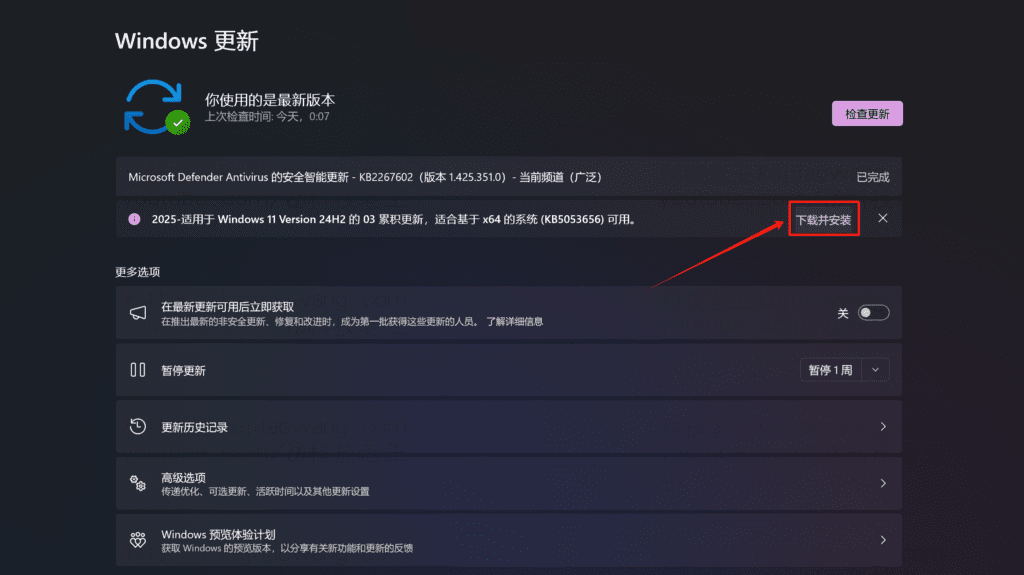
💡 hint: If you need to restore Windows updates in the future, you can still Manually checking for and installing updates, ensuring system security:
- Open “Settings” → Enter “Updating and security” → Select “Windows Update”The
- strike (on the keyboard) “Check for updates”The system automatically searches for and installs the latest patches.
- If the one-click disable script was previously used, some users may need to Re-enable the Windows Update Service, and then manually update it.
This way, you can both Avoid the risk of blue screens from frequent automatic updatesIt's a great way to get the most out of your life. Proactive installation of critical security patches, keeping the system stable and secure! ✅





 Lan Xiaobo (1952-1997), PRC politician Protocol Not Supported The client and server do not support the general SSL protocol version or cipher suite. This error is prompted
  kittyzero Hi, https://www.youtube.com/watch?v=eJUWQqCKfW0 I set it up and the extranet won't go out, not sure why, emailed you, thanks.
  ericjin211 Hi, tried this solution and found that foreign sites going through openclash proxy will not go through adguardhome, what could be the problem 🤔
  666 Tried the copy, no other problems, dns test has Hong Kong and Japan, not sure if it's a leak or not
  Loong2004 Hello, I feel that the program is very good, but the white hand is handicapped, can you have paid remote guidance, thank you!
  Chinese
  English
  Spanish
  French
  German
  Japanese
  Portuguese
  Italian
  Dutch
Dutch