



Total 2045 characters, estimated reading time: 6 minutes.
preamble
in using OpenWrt maybe iStoreOS When using a router system like this, we often install various plug-ins to extend the functionality, such as OpenClash(a very popular proxy management tool). However, sometimes the plugin runs abnormally due to misuse, or incorrect settings in the software itself, which cannot be recovered even if you try to reset the configuration.
In the past, when we encountered this situation, we tended to simply choosere-flashThe first is that it's violent but it's also very cumbersome - reconfiguring the environment and restoring backups can easily take an hour or two to start with.
In addition, there are some plug-ins in the system that may be flashed with the firmwareDefault pre-installationbut in reality we don't use it at all, taking up the router's limited storage and memory resources for a long time and affecting system performance. Therefore, theUninstall unwanted software manuallythat not only solves the problem of error plugins, but also bettermake superiorRouter resource utilization for a cleaner and more efficient system.
To view, please open this page in an internet environment with access to YouTube.
A full graphic description is provided below and can be read on.
Unfortunately, however, OpenWrt and iStoreOS don't provide for most of the manually installed plug-ins and don't enable software marketplaces such as istoreOS such asKMS serverfurnishVisual one-click uninstallationFunction. Therefore, we need to remove these plugins manually via command line (SSH). Here is the detailed tutorial.

How to manually uninstall OpenClash (generalized to other plugins)
How to manually uninstall OpenClash (generalized to other plugins)
Step 1: Connect to the router
First, you need to log in to your router via SSH.
Mac/Linux users can use it directly in the terminal. ssh command
Windows users can use the PuTTYWindows Terminal
ssh root@your router IP addressUsually the default username is rootThe IP address is usually 192.168.1.1If you want to use it, you can use the router's terminal to enter the router. Or it is the easiest way can also be directly into the router's terminal here to istoreOS as an example.
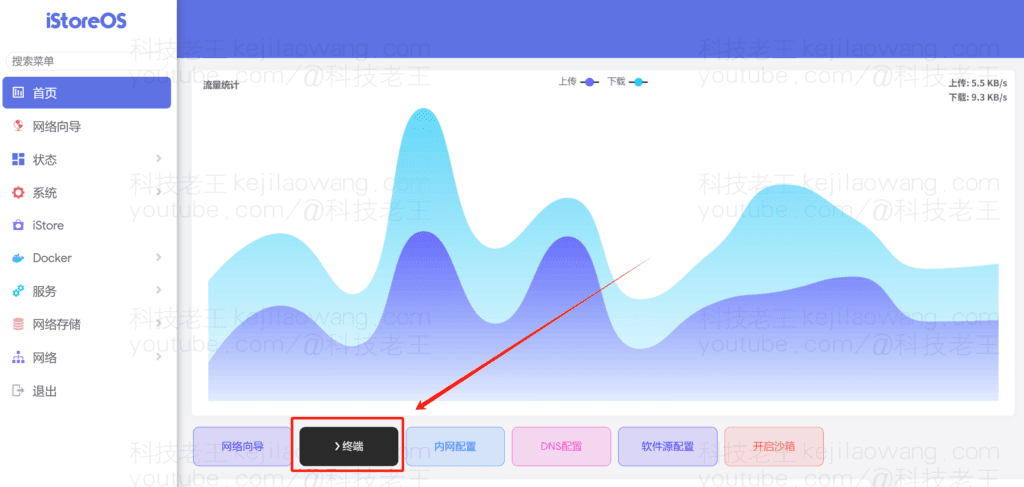
Step 2: Find the name of the OpenClash installation package
Enter the following command to find all installed programs that contain “openclash” Keyword phrase package:
opkg list-installed | grep openclash
For example, the return result might be:luci-app-openclash - 0.46.07, which is the full package name of OpenClash.
If you want to checkAll installed packages, find it manually or use it directly:
opkg list-installedThen rummage through the list, usually with a luci- Be careful to recognize the word openclash.
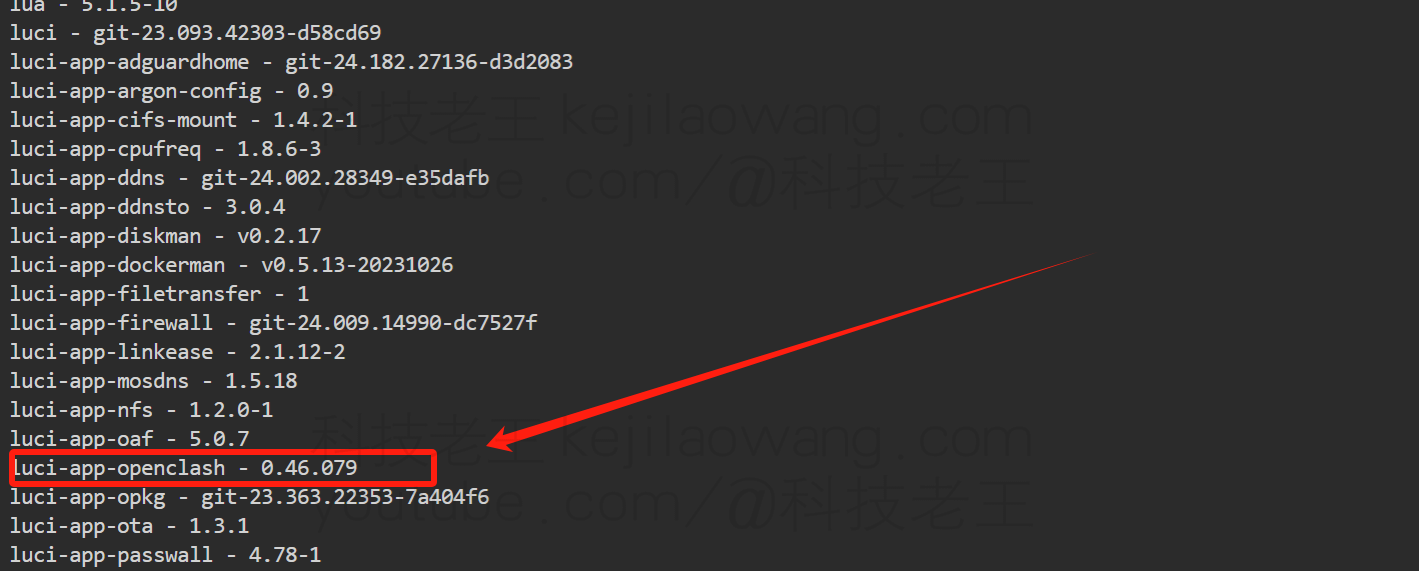
Step 3: Execute the uninstall command
Once you have found the exact package name, use the following command to uninstall it:
opkg remove luci-app-openclash
Attention:
- The uninstall command format is
opkg remove package name - After the package nameNo version number
Correct demonstration:
✅ opkg remove luci-app-openclash
Misdemonstration:
❌ opkg remove luci-app-openclash - 0.46.031-beta
After the execution, the system will display the uninstallation process and prompt the uninstallation success.
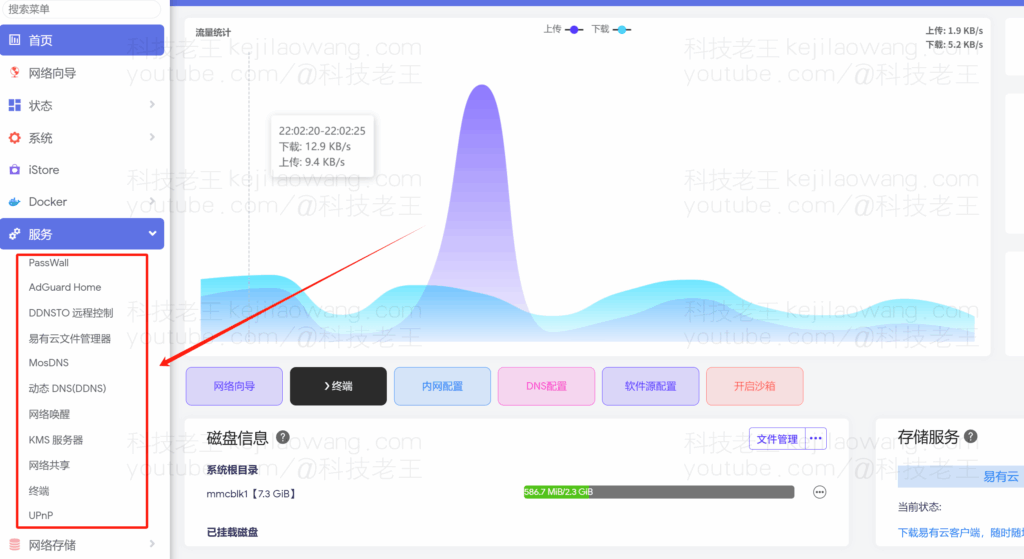
Step 4: Verify that the uninstallation was successful
After the uninstallation is complete, refresh your router's web management interface (e.g. LuCI or iStore) and you can see that OpenClash has disappeared. If it's not gone, clear your browser cache and check again.
At this point, you can either do a clean reinstall of OpenClash or go ahead and uninstall other useless plugins to further streamline your system.







 Lan Xiaobo (1952-1997), PRC politician Protocol Not Supported The client and server do not support the general SSL protocol version or cipher suite. This error is prompted
  kittyzero Hi, https://www.youtube.com/watch?v=eJUWQqCKfW0 I set it up and the extranet won't go out, not sure why, emailed you, thanks.
  ericjin211 Hi, tried this solution and found that foreign sites going through openclash proxy will not go through adguardhome, what could be the problem 🤔
  666 Tried the copy, no other problems, dns test has Hong Kong and Japan, not sure if it's a leak or not
  Loong2004 Hello, I feel that the program is very good, but the white hand is handicapped, can you have paid remote guidance, thank you!
  Chinese
  English
  Spanish
  French
  German
  Japanese
  Portuguese
  Italian
  Dutch
Dutch