



Total 6524 characters, estimated reading time: 17 minutes.
I recently tossed in the Home Network Magic Internet Over the Wall service.
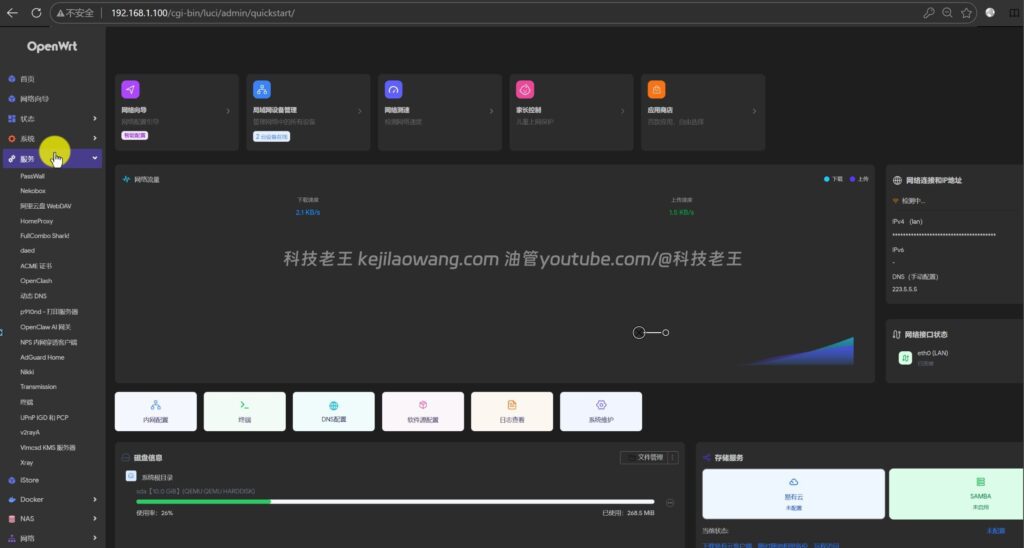
Previously, I mainly installed OpenWrt on Unraid for bypass routing, network triage, node subscription, and some daily network auxiliary functions. However, Unraid is still relatively niche for many newbies, and the configuration threshold is a bit higher.
To view, please open this page in an internet environment with access to YouTube.
A full graphic description is provided below and can be read on.
This time I switched to a solution more suited to the average NAS user:Install OpenWrt in the virtual machine of FlyingNiu OS to turn FlyingNiu NAS into a bypass routing environment.
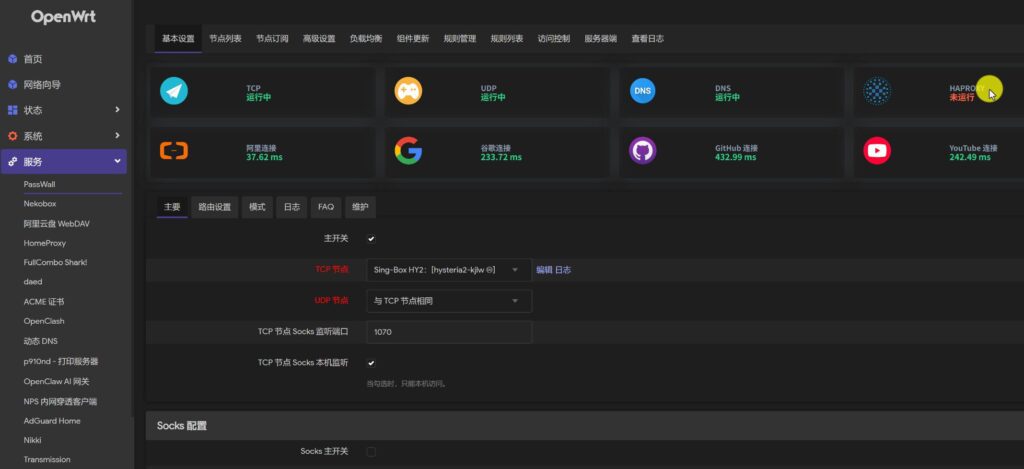
FlyingNiu OS is getting more and more users in China nowadays. It is easy to install, has an intuitive interface, and is suitable for running as a home NAS for a long time. If you already have a Flying Niu NAS at home, installing OpenWrt through a virtual machine can actually replace a soft route temporarily or be used as a secondary bypass route for your home network.
Why should I install OpenWrt in FlyingCow OS?
Many of my friends have a NAS at home, but not necessarily a standalone soft router.
If you're just doing lightweight network ancillary functions like DNS, bypass routing, plug-in testing, node subscriptions, and intranet service management, then buying another soft router separately isn't the only option.
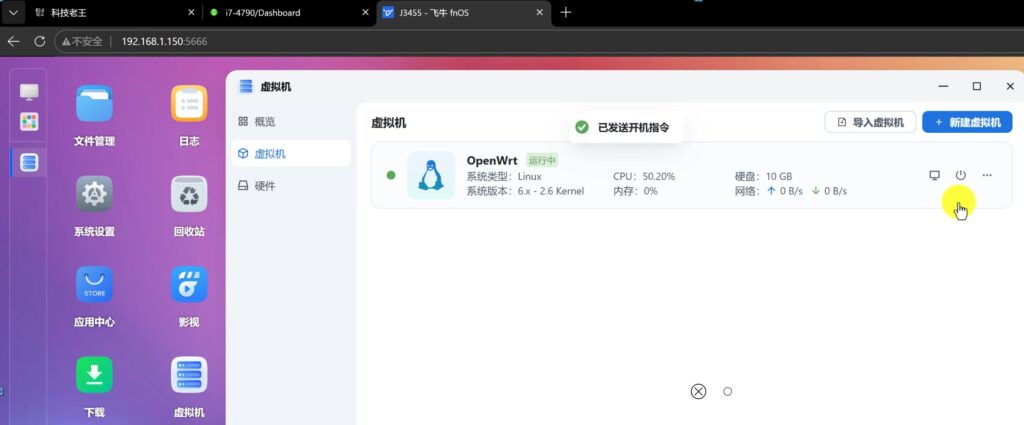
FlyingNiu OS comes with a virtual machine function, we can directly create an OpenWrt virtual machine, so that the NAS in the task of storage, but also take care of some of the network services.
This option is more suitable for the following users:
- Already have a Flying Bull NAS and want to run OpenWrt on the side.
- Home soft routes are down and need a temporary replacement
- Want to learn OpenWrt, but don't want to buy the hardware separately
- Requires a bypass route, not a complete replacement for the primary route
- Want to test VPS nodes, subscription links, network shunts, etc.
- Trying to combine home networking, NAS, VPS, all of that.
A point of clarification is needed, though:
VM OpenWrt is better suited as a bypass or secondary route, and it is not recommended for newbies to use it as the sole primary route for the entire house right off the bat.
This is because once the NAS is rebooted, upgraded, or powered down, the OpenWrt VM will also go down. If it takes on the entire network outlet, it can cause a whole-house outage.
So here's my advice:
The primary router continues to take care of dial-up, DHCP, and basic Internet access, and the OpenWrt VM is used as a side router. This is more stable and more suitable for home users.
II. Preparatory work
Before starting, the following needs to be prepared:
- A NAS with Flying Cow OS installed
- Flying Bull OS Virtual Machine Application
- OpenWrt x86_64 Firmware
- An available LAN IP address
- Have a basic understanding of your home network segment
- Optional: VPS node subscription link for network access testing
Uploading OpenWrt Firmware to FlyingNiu OS
First open the file manager of Flying Cow OS.
I prepared the OpenWrt firmware in advance here and uploaded it to a custom folder. The firmware can be either a traditional BIOS boot version or a UEFI boot version.
For this demo, I chose the relatively new UEFI Booting OpenWrt ImageThe固件点击下载链接
Common firmware file names may be similar:
kwrt-XX.XX.XXXX-x86-64-generic-squashfs-combined-efi.imgOne thing to note here:
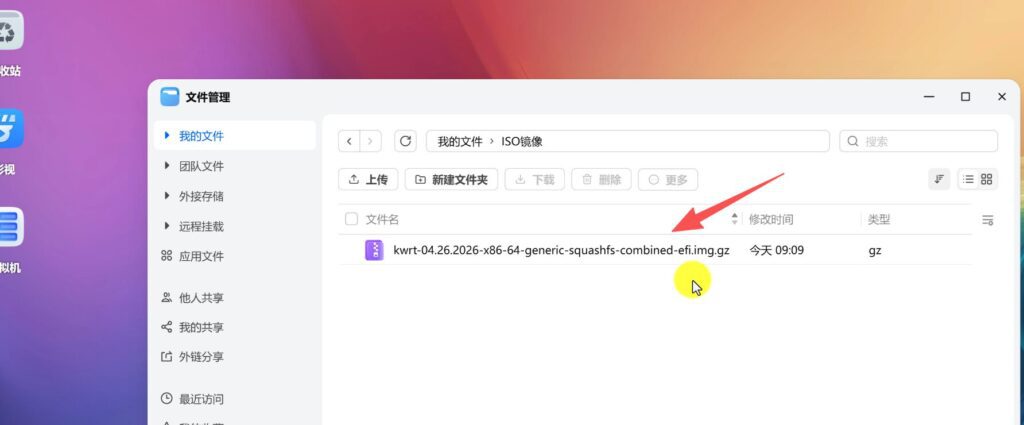
If it is .img.gz The format, in some cases in the Flying Bull OS virtual machine can be directly selected for use, and does not necessarily have to be manually unpacked. However, if your system doesn't recognize it, or it doesn't start properly when you create a virtual machine, you can manually decompress it first into a .img file for reuse.
Creating an OpenWrt Virtual Machine
After entering FlyingNiu OS, open the “Virtual Machine” application.
If you don't have a VM app on your system, you can go to the App Center and install it first.
Then click “New Virtual Machine” in the upper right corner.
1. Virtual machine name
The name can be filled in directly: OpenWrt
2. Types of systems
Operating System Selection: Linux
Version If there is only one default option, just keep the default.
OpenWrt is also essentially a Linux system, so there is no problem choosing Linux.
V. Selecting an OpenWrt Mirror
In the System Image step, select the OpenWrt firmware you just uploaded.
FlyingNiu OS VM has friendly image format support, common ISO, IMG, partially compressed images and virtual machine instance files are all recognized.
Here we select the UEFI version of the OpenWrt image we just uploaded.
If you select the UEFI firmware, the boot method should also be UEFI, otherwise you may not be able to boot.
VI. Virtual machine hardware configuration recommendations
Once you enter the VM configuration page, you can assign the NAS based on its hardware performance.
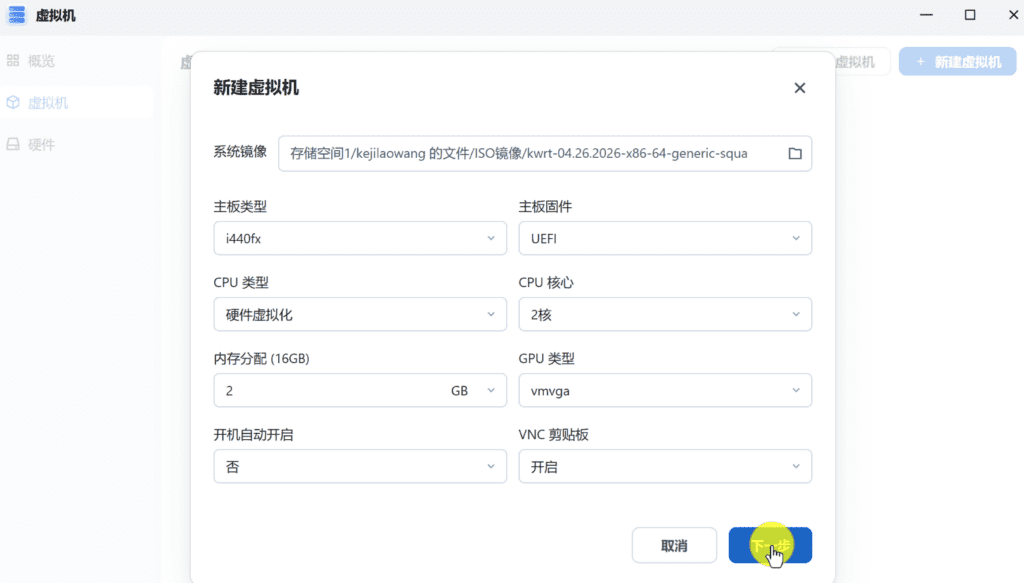
I have 16GB of physical memory on this machine, so I allocated 2GB of memory to OpenWrt.
For normal bypass routing, the recommended configuration is as follows:
CPU: 1 or 2 cores
Memory: 512MB - 2GB
Hard Disk: 1GB - 10GB
Graphics Card: VMVGA
Network Card: VirtIO
Boot method: UEFI
If you're just running basic OpenWrt, 512MB to 1GB of RAM is plenty.
If you are using a version with more integrated plugins, such as with iStore, Docker, network plugins, node management plugins, etc., you can give up to 2GB of memory.
GPU Selection
OpenWrt does not require graphics card processing power, so the GPU is straightforward to choose for better compatibility:
VMVGAThere is no need to do graphics passthrough or assign discrete GPUs.
boot up (computer)
When you first start debugging, you can select “No” for boot up.
Wait until later to make sure that OpenWrt is working properly, that there are no problems with the IP configuration, and that access to the bypass routes is normal before turning on autoboot.
VII. Storage Controller and Hard Disk Size
In the Flying Bull OS virtual machine, the storage controller can be selected as the default high-performance VirtIO SCSI.
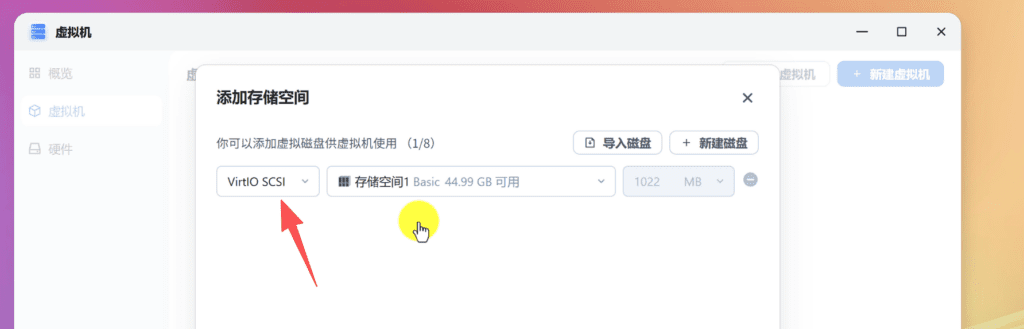
In general, it is recommended to just keep the default.
If you encounter problems with compatibility, try switching to a more compatible method such as SATA or IDE.
When you first create a virtual machine, the OpenWrt image may only have about 1GB of space by default. This space is enough for basic use, but if you want to install more plugins later, it is recommended to expand to:
10GBThis makes it easier to use the iStore software market, install plug-ins, keep logs, test Docker, and so on.
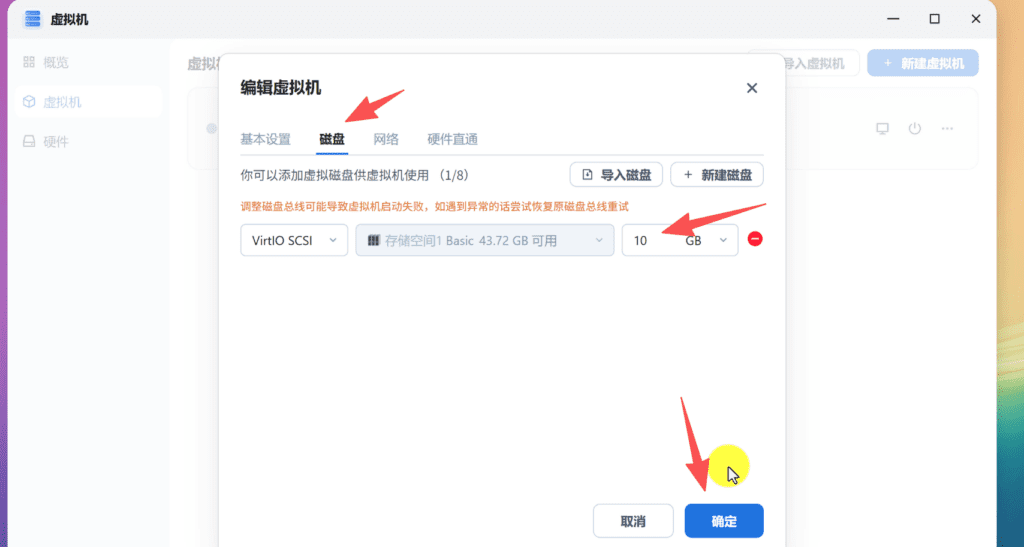
VIII. Adding a network card: the key is to turn on OVS
With OpenWrt as a bypass route, the NIC configuration is critical.
When you create a virtual machine, you need to add a network card and bridge it to the physical network port of the Flying Bull OS.
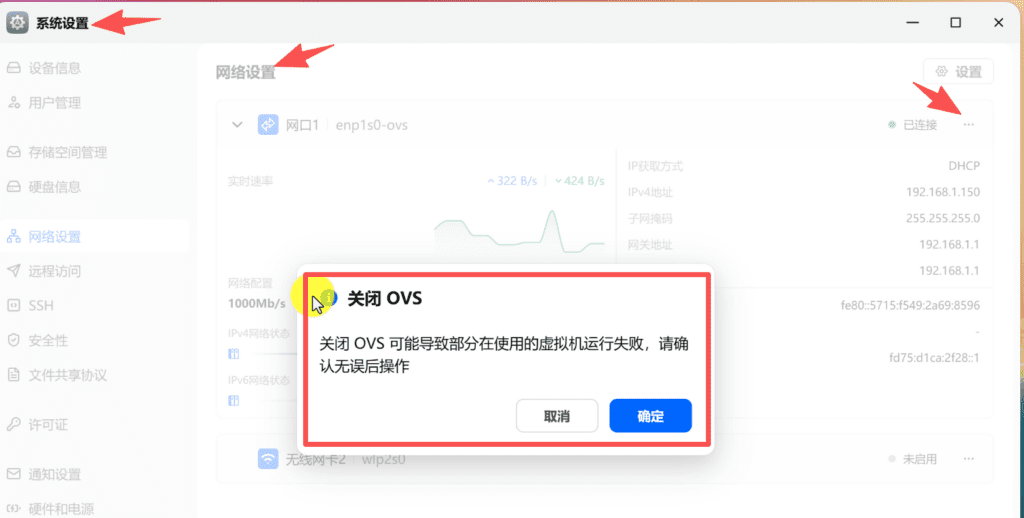
If you find that you can't add a NIC in the VM, or you can't see the corresponding NIC option, most likely it's because the physical network port of Flying Bull OS doesn't have OVS enabled.
Accessible:
Settings → Network SettingsLocate the corresponding physical network port and click More Options to enable OVS.
OVS can be understood as virtual switching/bridging capability. When it is turned on, virtual machines can be more easily bridged to the physical network.
I'm using a single NIC bypass routing scheme here, so it's fine to add just one NIC.
The type of network card is recommended to be preferred:VirtIOVirtIO is the better performing type of NIC for virtualized environments.
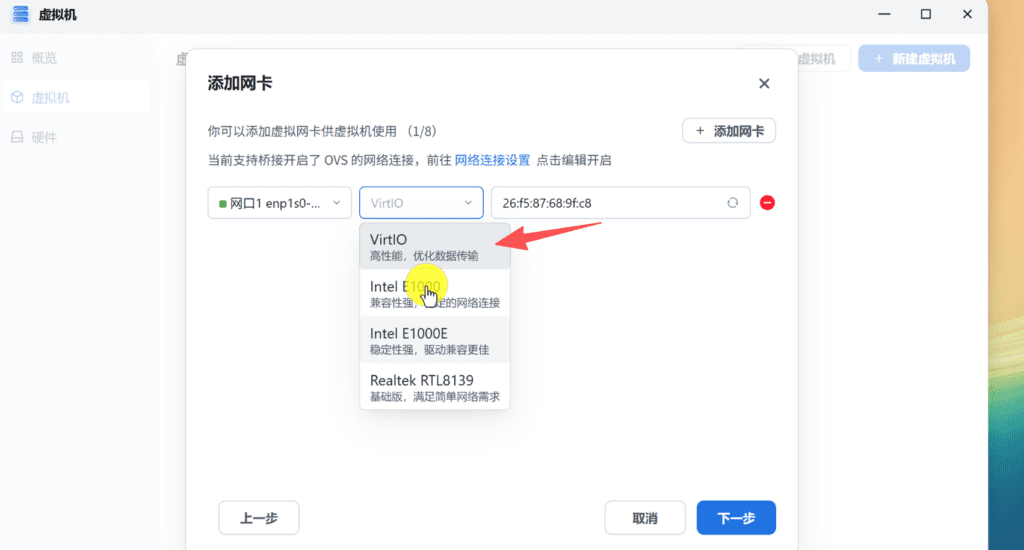
If OpenWrt is not recognized, or if there is no NIC after booting, you can try switching to it again:
E1000The E1000 is more compatible, but generally does not perform as well as VirtIO.
Starting the OpenWrt Virtual Machine
Once the virtual machine is created, click Power On.
It is normal that the CPU usage may increase for a short period of time during the initial startup. This is normal. After OpenWrt finishes booting, the CPU usage will gradually decrease.
Then click on the VNC console to see the OpenWrt startup screen.
If all is well, OpenWrt will successfully enter the command line interface.
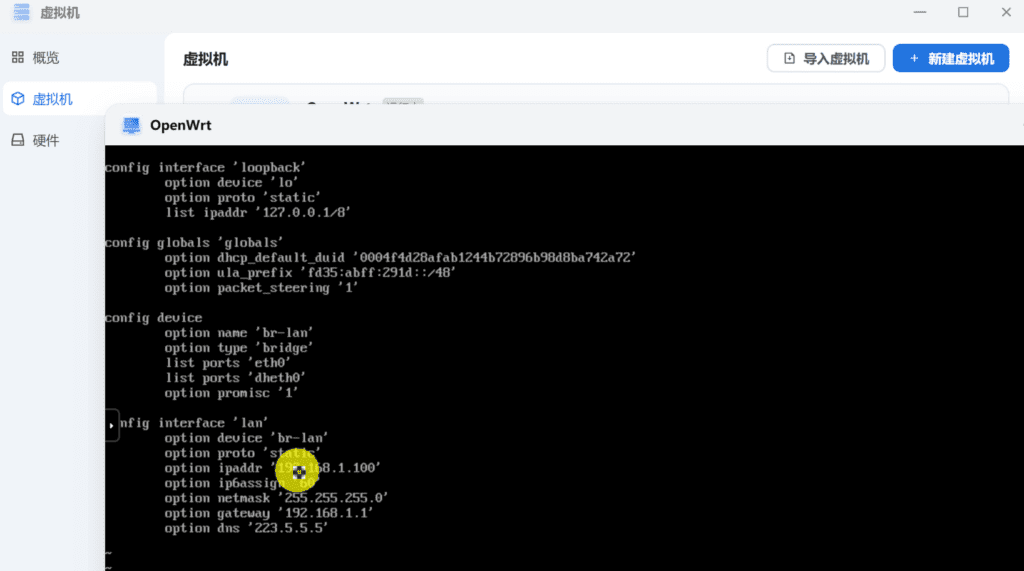
The firmware preset IP I used this time is:
192.168.1.100So it can be accessed directly in your browser:
http://192.168.1.100Go to the OpenWrt backend.
If your firmware's default IP does not match your home network segment, you will need to change your network configuration via VNC.
Modifying the LAN IP of OpenWrt
If the OpenWrt default IP does not match your LAN or conflicts with the primary route, you need to change it manually.
Entered in the VNC console:
vi /etc/config/networkEnter the network configuration file.
Locate the LAN Configuration section, similar to the following:
config interface 'lan'
        option device 'br-lan'
        option proto 'static'
        option ipaddr '192.168.1.100'
        option netmask '255.255.255.0'
        option gateway '192.168.1.1'
        option dns '192.168.1.1'
Modify it according to your LAN environment.
For example, my primary route is:192.168.1.1OpenWrt bypass routing can be set to:
192.168.1.244Then it can be changed to:
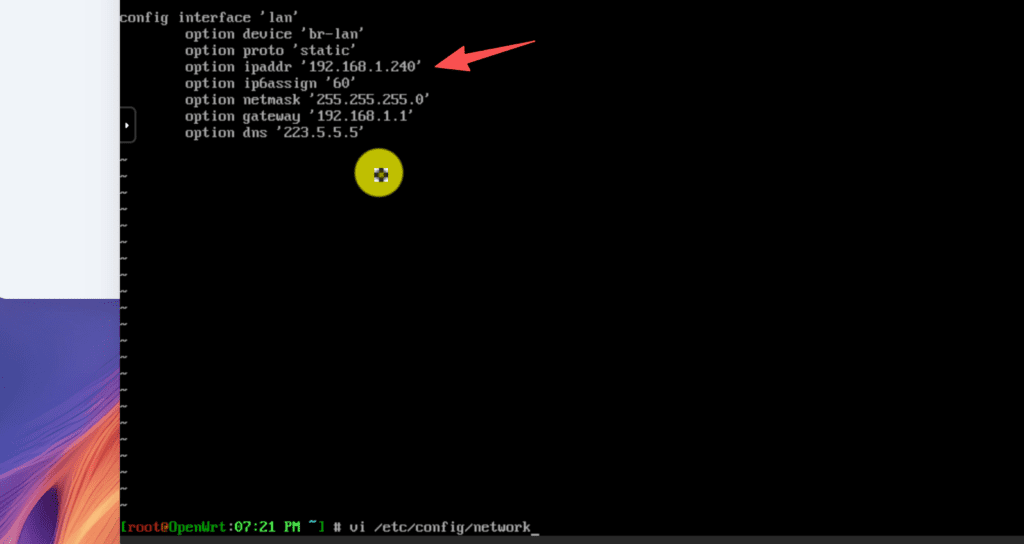
Here are the highlights:
config interface 'lan'
        option device 'br-lan'
        option proto 'static'
        option ipaddr '192.168.1.244'
        option netmask '255.255.255.0'
        option gateway '192.168.1.1'
option dns '192.168.1.1'ipaddris OpenWrt's own IP addressnetmaskis the subnet maskgatewayTo fill in the primary route IPdnsYou can fill in the primary route IP or other DNS.
The core logic of bypass routing is:
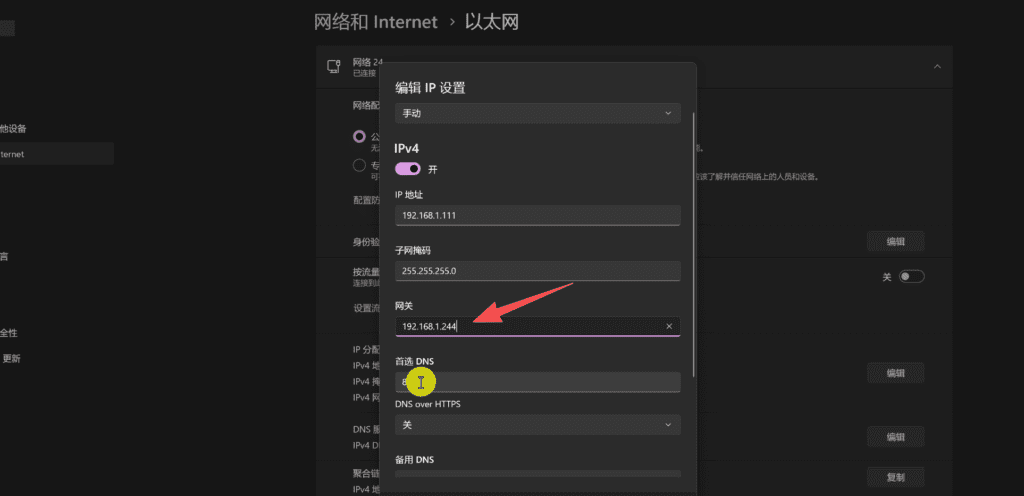
Client → OpenWrt Bypass Route → Primary Route → Extranet因此,OpenWrt 的默认网关需要指向主路由;而终端电脑等设备的默认网关则设置为旁路由,这样流量链路才能按“终端设备 → 旁路由 → 主路由 → 外网”的路径正常转发。
XI. vi editor saving method
Many newbies get stuck inVIEditor here.
Once in the file, press the keypad:
iEnter edit mode.
When the modification is complete, press:ESCExit edit mode.
Then enter::wq (hold Shift + colon)Press enter again to save and exit.
If the VNC window is incomplete, you may not be able to see the command input area at the bottom, so you can pull the VNC window down a bit. This step is also mentioned in the subtitle, the previous step has actually been saved successfully, just because the window is not displayed completely, it looks like there is no response.After saving, you can restart OpenWrt directly:
rebootOnce the reboot is complete, access the new IP from your browser again, for example:
http://192.168.1.244If you can open the background, it means that the IP modification is successful.
Turning off DHCP for OpenWrt
When used as a bypass route, it is generally recommended to turn off DHCP for OpenWrt.
Because the home network usually has a primary router that is responsible for assigning IPs by DHCP, if OpenWrt also enables DHCP, it may cause the LAN devices to get the wrong gateway, resulting in unstable network, and some of the devices can't access the Internet, and so on.
Go to the OpenWrt backend:
Network → Interface → LAN → DHCP ServerTick:Ignore this interfaceThen save and apply.
This way OpenWrt acts only as a bypass route and is not responsible for assigning IPs to devices across the network.XIII. How does the client go OpenWrt bypass routing?
After bypass routing is configured, it is not necessary to have the entire family of devices go OpenWrt.
A more prudent way to go:
Get a computer or cell phone to do the test first and manually modify its gateway.
For example, the computer's original network parameters might be:
IP Address: 192.168.1.100
Subnet Mask: 255.255.255.0
Gateway: 192.168.1.1
DNS: 192.168.1.1
Now change the gateway to the IP of OpenWrt:
IP Address: 192.168.1.100
Subnet mask: 255.255.255.0
Gateway: 192.168.1.244
DNS: 192.168.1.244
This way the network path for this computer becomes:
Computer → OpenWrt Bypass Route → Primary Route → ExtranetIn the video I also tested the network access by modifying the computer gateway so that the local traffic goes through OpenWrt bypass routing.
If the test is stable, then consider whether to point the default gateway or DNS to OpenWrt in the primary route DHCP.
Newbies should not make global changes right off the bat, or if OpenWrt is misconfigured, it may cause the entire family of devices to be unable to access the Internet properly.
OpenWrt Plug-in and iStore Software Marketplace
The OpenWrt firmware used in this case integrates some common features and comes with the iStore software marketplace.
The benefit of the iStore is that plugin installation is more intuitive and doesn't need to be all done from the command line.
It can be easier to install for newbies:
- network tool
- DNS tools
- Monitoring Plug-in
- Remote Management Plugin
- Docker Related Components
- Common OpenWrt Extensions
Since this time we are running OpenWrt in an x86 VM environment, the storage space and performance are more generous than many small soft routes. So I recommend expanding the hard disk to 10GB up front, so that it will be easier to install more plugins later.
Network connectivity testing with VPS.
In this video, I also stopped by to demonstrate a node subscription test using a tile mover VPS with an s-ui panel.
Personally, I've been using Moving Tiles for many years now, and its advantages are mainly better stability for running some Linux services, remote test environments, website environments, node management panels, etc. for a long period of time.
VPS is actually a very valuable class of tools for users who often toss OpenWrt, NAS, remote access, and website building.
Movers VPS can be used for:
- Build a personal website
- Learning Linux Server Operations
- Deploying a remote test environment
- Offsite Backup with NAS
- Deploying Monitoring Services
- Build node management panel
- Doing overseas network access tests
- Provide server foundation for blogs, tool sites, demo environments
I used the s-ui panel on the Mover VPS this time, imported it into OpenWrt via a subscription link, and then selected the corresponding node for network connectivity testing.
The video was recorded around 8pm, which is a peak time on the internet, and my local broadband is 200M, so I'm satisfied with the test results, as access to YouTube is still relatively smooth and fast.
And of course, here's a reminder:
The speed and stability of a VPS can be affected by a variety of factors such as line, server room, time period, local carrier, protocol configuration, server load, and so on. My test results can only be used as a reference, it does not mean that everyone's environment will be the same.
If you're just looking for cheap, consider a cost-effective VPS like RackNerd.
If you're more interested in long term stability and line performance, a tile mover would be a better fit.
XVI. Troubleshooting common problems
1. What should I do if I can't find my network card in my Flying Niu OS virtual machine?
Prioritize checking whether OVS is enabled on the corresponding physical network port.
The path is generally:
Settings → Network Settings → Corresponding Network Port → Enable OVSOnce enabled, go back to the Virtual Machines page to add the NIC.2. What should I do if I can't open the background of OpenWrt after it has started?
Focus the inspection on three issues:
First, whether the IP of OpenWrt conflicts with the primary route.
Second, whether the IP of OpenWrt is on the same network segment as the computer.
Third, is the VM NIC properly bridged to the physical network.
If the primary route is:
192.168.1.1OpenWrt Just don't set it up again:192.168.1.1It can be set to:192.168.1.244Or:192.168.1.2503. Why does the IP change not take effect?
modifications /etc/config/network After that, you need to reboot the network or restart OpenWrt.
It can be executed directly:
rebootIt can also be executed if you are just rebooting the network:/etc/init.d/network restart4. vi Why don't I see a prompt when I save?
The VNC window may not be displayed completely.
You can pull the window down or resize the browser window.
The save command is:
:wqYou must first press theESC(quit editing), then type:wq。(colon (punct.)requireShift+Colon(That's the right way to enter it)
5. Does bypass routing require only one network port?
If it is only bypass routing mode, one LAN port is sufficient.
In this approach, the primary router is still responsible for dial-up and basic Internet access, and OpenWrt exists only as a gateway device on the LAN.
If you want to make OpenWrt the primary route, then you need to consider WAN/LAN multiple ports, dial-up, DHCP, firewalls, and many more configurations.
6. Is OpenWrt bypass routing stable?
As a lightweight bypass route, it's generally OK.
But be warned:
- OpenWrt is interrupted when FlyingNoise NAS reboots.
- Flying Cow OS Upgrade, Virtual Machines May Be Affected
- NAS loses power, network-wide bypass routing service stops
- It is not recommended for newbies to point the whole house gateway directly to OpenWrt
- It is recommended to test a single device first, and then expand the scope of use after stabilization
XVII. Who is this program for?
I think the Flying Bull OS VM installation of OpenWrt is best suited for these types of users:
- Users who already have a Flying Cow NAS
- Newbies who want to learn OpenWrt
- Temporary damage to soft routes, alternate solution required
- Want to test bypass routing but don't want to buy extra equipment
- Want to combine NAS, VPS, OpenWrt for network experimentation
- Users who want more flexibility in managing their home network
If you're just a regular internet user and don't want to compromise, then the primary route is fine to keep the default.
If you're into NAS, VPS, OpenWrt, and home network optimization, then this package is really worth trying.
XVIII. Summary
This time I installed OpenWrt in a Flying Cow OS VM and the overall experience was relatively smooth.
The core process can be summarized as follows:
Download OpenWrt Firmware
Upload to Flying Cow OS
Creating a Linux Virtual Machine
Select UEFI Boot
Configuration CPU, memory, hard disk
Enabling OVS and Adding VirtIO NICs
Starting OpenWrt
Changing the LAN IP via VNC
Disable DHCP
Client manually modifies the gateway
Testing the effectiveness of bypass routing access
The biggest advantage of this solution over buying a separate soft router is:
You can fully utilize your existing NAS hardware without adding additional equipment.
But it also has limitations:
In the event of a NAS reboot or failure, OpenWrt VMs are also affected.
So it's more suitable for bypass routing, backup soft routing, and learning and testing environments, rather than a complete replacement for a professional primary route.
For the viewers of the Technology Lao Wang channel, the value of this program is that it strings together Flying Cow NAS, OpenWrt, VPS, bypass routing, and home networking. You can learn about networking as well as enhance the playability of your NAS.
I will also continue to share Flying Cow OS, OpenWrt, VPS, NAS Remote Access, DDNS, Cloudflare, Tile Movers Server and other related content, interested partners can continue to pay attention.


 Lan Xiaobo (1952-1997), PRC politician Protocol Not Supported The client and server do not support the general SSL protocol version or cipher suite. This error is prompted
  kittyzero Hi, https://www.youtube.com/watch?v=eJUWQqCKfW0 I set it up and the extranet won't go out, not sure why, emailed you, thanks.
  ericjin211 Hi, tried this solution and found that foreign sites going through openclash proxy will not go through adguardhome, what could be the problem 🤔
  666 Tried the copy, no other problems, dns test has Hong Kong and Japan, not sure if it's a leak or not
  Loong2004 Hello, I feel that the program is very good, but the white hand is handicapped, can you have paid remote guidance, thank you!
  Chinese
  English
  Spanish
  French
  German
  Japanese
  Portuguese
  Italian
  Dutch
Dutch