



Total 2480 characters, estimated reading time: 7 minutes.
Dusty long box ushered in the second spring of waste reuse, has been using the use of the OpenWrt version of the L has been relatively stable, and then later it has been using computer software V2rayN so has been idle also did not update recently saw the previous koolshare team based on OpenWrt customized soft routing system iStoreOS support for the N1 box! I also want to try iStoreOS is also based on OpenWrt's third-party firmware compared to the official OpenWrt, iStoreOS's advantages are:
- Better support for Chinese and more friendly to domestic users.
- Officially, the ISStore Mall is maintained to facilitate the download of commonly used OpenWrt software.
- Easy to configure, has a graphical interface, and is more novice friendly.
To view, please open this page in an internet environment with access to YouTube.
A full graphic description is provided below and can be read on.
N1 box install iStoreOS system detailed video tutorials, such as playback failure can click the link to watch!The Old King of YouTube Tech

Firmware flashing
Download iStoreOS Firmware
- existiStoreOS official websiteDownload the firmware for the Fusion N1

I. Flashing to eMMC via USB flash drive
- We recommend balennaEtcher, it's very easy to use and the interface is very friendly.
- Download link:https://etcher.balena.io/#download-etcher
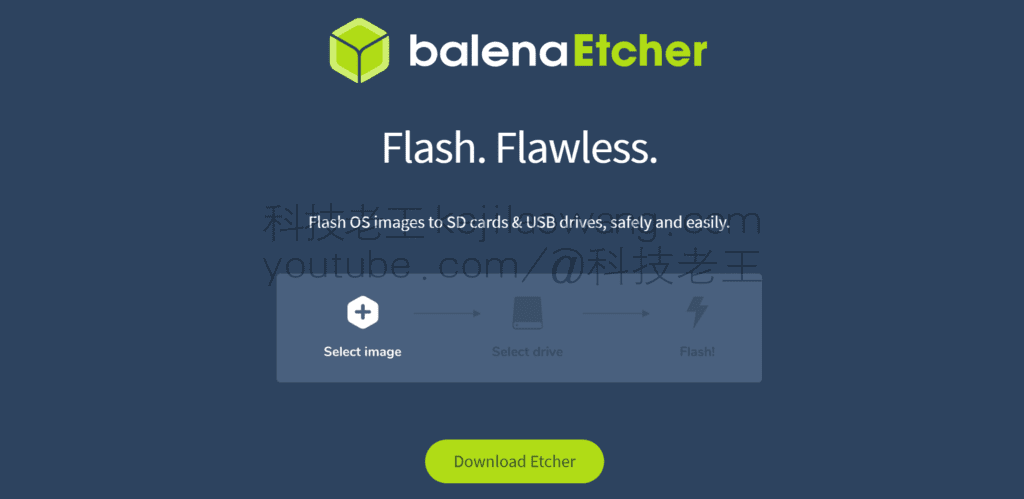
- Creating a boot disk
Writing iStoreOS Firmware to a USB Flash Drive - Booting to a USB flash drive system
Insert the USB flash drive, boot into the system, open the terminal, execute the following commands can be directly written to EMMC of course, you can first use the USB flash drive to familiarize themselves with and then write can be:
install-to-emmc.sh- After the command is executed, the system will be installed to eMMC, and you can turn off the computer and disconnect the USB flash disk after the installation is completed.
- Show log
If you need to view the startup log, it is recommended that you connect an HDMI monitor before booting. After booting, the log will be displayed on the monitor. Note: The HDMI monitor must be connected before powering up; connecting it after booting will not display it. - Entering Command Line Mode
If a USB keyboard is connected, when the log stops scrolling, press the Enter key to access the command line interface of iStoreOS.
IP Address Acquisition
The default network port is in DHCP client mode and the IP address is not fixed. If a monitor is connected, you can view the IP by entering the following command from the command line:
ip addrIf no monitor is connected, you can view the most recently assigned IP address through the backend of the primary router.
III. Start indicator status
- About 20 seconds after powering on, the front LOGO light will start blinking to indicate that the system is initializing.
- When system initialization is complete, the LOGO lamp will become normally lit.
- If the light is not blinking after 30 seconds of powering up, there may be a startup failure.
IV. Firmware upgrade
- Firmware can be upgraded directly without having to recreate a USB flash drive or flashing eMMC:
- Download the new firmware file (no need to unzip it).
- Log in to the backend of the page and go to “System” - “Backup/Upgrade” option.
- Click the “Write Firmware” button to upload the firmware file and follow the instructions on the page to complete the upgrade.
V. Common Problems and Solutions
- Flashing process for stock firmware box
- If the current firmware version is higher, you need to downgrade to 2.19 first (downgrade tutorial can be found on website B, Bootloader also needs to be downgraded).
- After the downgrade is complete, enter the Android system and network to obtain an IP address.
- Insert the created USB flash drive and execute the following commands with your computer:
adb connect [盒子 IP]
adb shell reboot update- The system will automatically reboot several times and eventually enter iStoreOS.
Flashing process of Linux system box
If the original system of the device is Linux (e.g. Armbian or Flippy firmware), simply insert the created USB flash drive to boot iStoreOS.
Brick Rescue and Factory Restore
If your device is bricked, needs to be restored to factory settings, or encounters system boot problems, you can refer to the relevant brick rescue tutorials on website B (in some cases, it is necessary to dismantle the phone). After the brick rescue is completed, follow the process of flashing the original firmware to reopen the device.
Get Route IP
Mode 1
- Before the USB flash drive boots Plug the swipe USB flash drive into the USB port closest to the HDMI port
- Box powered down, HDMI connected to display
- The box connects to the router (n1 firmware is used as a bypass route by default, IStoreOS will automatically assign any IP under the primary route segment)
- Power up the box and wait for boot to start
- When the command line is not scrolling, press the Enter key and the
ISTOREOSIf the word "Successful" is used, the startup will be successful. - utilization
ip addrcommand to obtain the routing IP
Mode 2
- Browser access to the main routing IP and enter the routing backend
- To view the IP address of a wired connected device (with the name IStoreOS)
Bypass Routing Configuration
- Browser access to the IP address of IStoreOS, access to the routing backend
- After logging in with the default password, find the Network Wizard
- Select Bypass Routing Mode
- Select Auto Setup

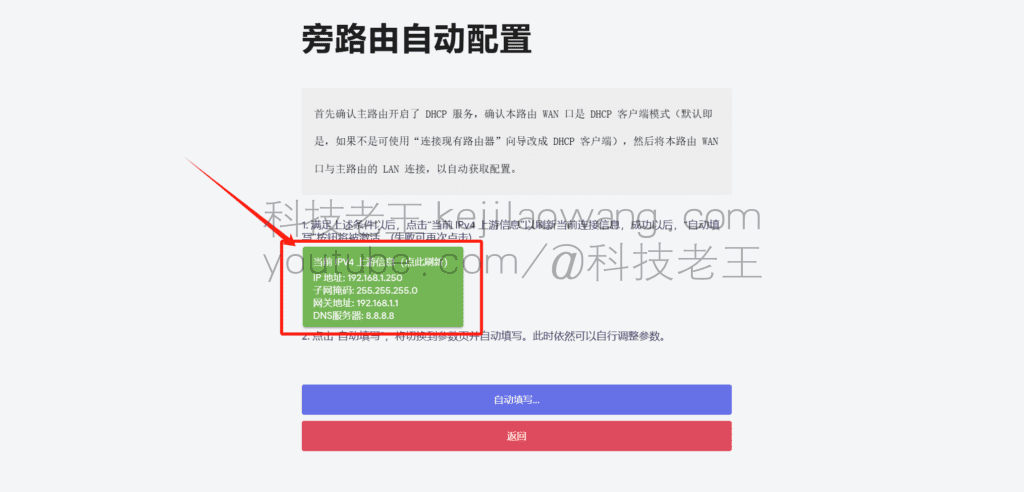


scientific Internet access
mounting
first inAre-u-okDownload the packages we need. Once the download is complete go back to the IStoreOS backend and find the IStore Store. Select Manual Installation to upload the package for offline installation.
Detailed video tutorial:https://youtu.be/NXG8zASpPUs






 Lan Xiaobo (1952-1997), PRC politician Protocol Not Supported The client and server do not support the general SSL protocol version or cipher suite. This error is prompted
  kittyzero Hi, https://www.youtube.com/watch?v=eJUWQqCKfW0 I set it up and the extranet won't go out, not sure why, emailed you, thanks.
  ericjin211 Hi, tried this solution and found that foreign sites going through openclash proxy will not go through adguardhome, what could be the problem 🤔
  666 Tried the copy, no other problems, dns test has Hong Kong and Japan, not sure if it's a leak or not
  Loong2004 Hello, I feel that the program is very good, but the white hand is handicapped, can you have paid remote guidance, thank you!
  Chinese
  English
  Spanish
  French
  German
  Japanese
  Portuguese
  Italian
  Dutch
Dutch