



Total 2359 characters, estimated reading time: 6 minutes.
在现代网络环境中,科学上网不仅需要稳定高效的节点切换机制,还要兼顾使用场景的便利性与安全性。本文将结合 OpenWRT/iStoreOS systemsnew version Passwall plug-inadvanced features such as node load balancing, HAProxy intelligent triage, and how to combine browser plugins through the Socks proxy SwitchySharp Realize remote scientific Internet access without installing additional software to protect the privacy security and convenience of non-personal devices, applicable to a variety of use scenarios.
Tip: Due to network restrictions, the YouTube videos on this page may not load in mainland China.
To view, please open this page in an internet environment with access to YouTube.
A full graphic description is provided below and can be read on.
I. Preparation of the basic environment
- Routing System: OpenWRT oriStoreOS official website(Recommended to use iStoreOS, more built-in plug-ins and more up-to-date)
- Plugin management: Installation via iStore Software Center or opkg Passwall
- Multiple available nodes configured (Vmess/Trojan/SS etc.)

Passwall Advanced Configuration: Automatic Node Switching + Load Balancing
1. Automatic node failover (automatic fault tolerance)
In the Passwall setup, we can create multiple nodes and set up a master/standby mechanism.
- Go to Node List
- Add multiple nodes (support different protocols)
- Set one of them as the master node and the others as standby nodes
- Enable the "Auto Switch" function and set the detection URL (e.g. https://www.google.com maybe https://cloudflare.com)
- Automatic switchover of standby nodes after detection failure
✅ Advantage: in case of failure of the master node, the system automatically switches over and keeps the connection uninterrupted.

2. Node load balancing (traffic equalization)
If you have multiple stable nodes, you can use the HAProxy Perform load balancing.
- Enabling HAProxy in Load Balancing Settings
- Add multiple backend nodes, configure polling or minimum number of connections policy
- Using HAProxy as an Export Proxy
✅ Advantages: can improve the speed, reduce the pressure of a single node, multiple nodes can work together to achieve an optimal and most efficient use of the scenario.
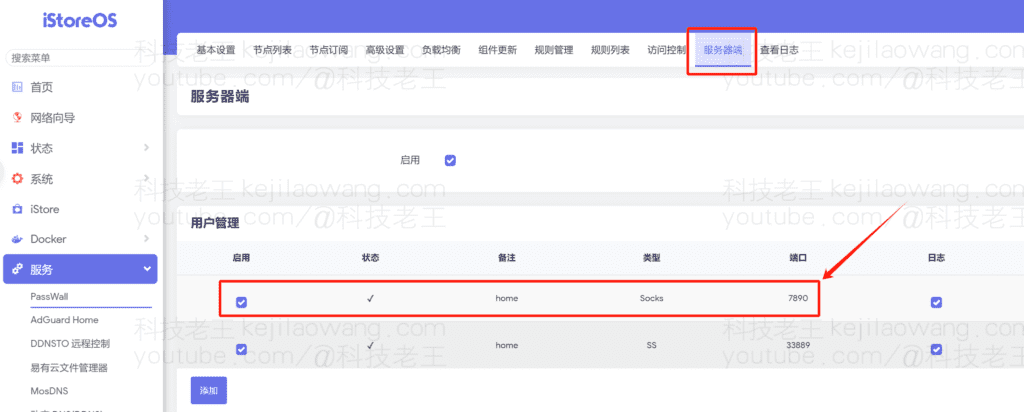
Build a Socks5 server
Passwall provides local and remote Socks5 Proxy Service. You can also see my preliminaries if you're not sureshadowsocks proxyThe reasoning is similar we can use this feature to realize the scientific Internet access in remote devices (such as offices, public computers, etc.) This is talked about in our pre-tutorial.
Operational Steps:
- Open Passwall → "Servers" → Enable "Socks Server".
- Set the listening address to
0.0.0.0:1080(open to the public) - Set access passwords or allow only specified IP whitelisting (for security)
- Verify that router port forwarding is configured and that the port is accessible from the outside network (DDNS or public IP recommended)

IV. Remote Scientific Internet Access: SwitchySharp + Socks
When you are in the office, public computers or non-local devices, it is inconvenient to install VPN tools, then we can realize easy proxy through browser plug-ins.
Use SwitchySharp to set up the proxy:
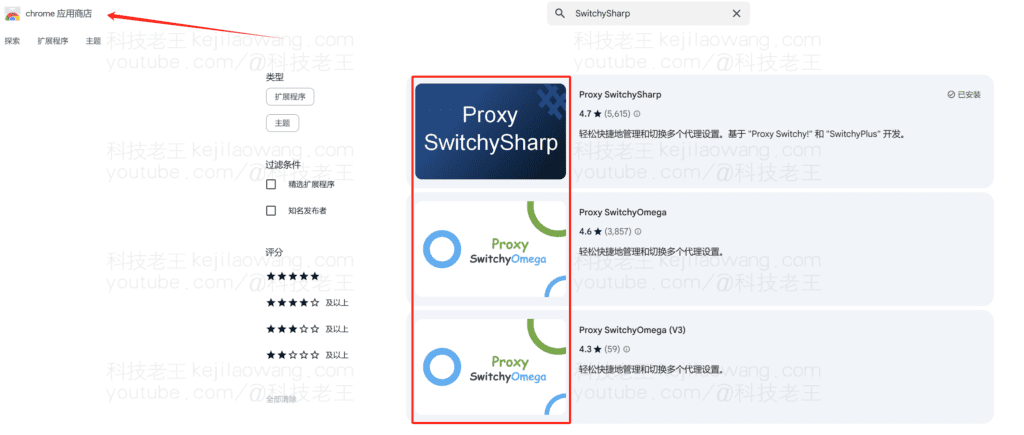
- Install the Chrome plugin:SwitchyOmega or SwitchySharpmoreoverGoogle App Store
- Add a new profile → Select Socks5 for type
- The address is filled in as your public IP or DDNS domain name, and the port is the Passwall Socks5 service port (e.g. 1080)
- Enable this profile to test access to extranet services such as Google, YouTube, etc.
V. Examples of practical scenarios
- ✅ Temporary office access to the extranet: No need to install a VPN, just browser + plugin + Socks!
- ✅ Off-site laptop use: Browser Proxy Walks Back Home OpenWRT Routing
- ✅ Mobile hotspot with computer: Traffic is routed through load-balanced routes for faster speeds

VI. Summary
Through the deep combination of OpenWRT/iStoreOS and the new Passwall plug-in, we can not only build a stable, automated proxy environment for the soft router at home to provide efficient scientific Internet servers for our remote terminals, but also through the remote Socks5 service with SwitchySharp to achieve installation-free scientific Internet access, adapted to a variety of It is safe, convenient and efficient to use with non-private devices.
In the future, it could be further combined with WireGuard/ZeroTier Intranet Penetration,DNS Triage Policyand other ways to realize more complex application scenarios. Let's discuss and make progress together.






 Lan Xiaobo (1952-1997), PRC politician Protocol Not Supported The client and server do not support the general SSL protocol version or cipher suite. This error is prompted
  kittyzero Hi, https://www.youtube.com/watch?v=eJUWQqCKfW0 I set it up and the extranet won't go out, not sure why, emailed you, thanks.
  ericjin211 Hi, tried this solution and found that foreign sites going through openclash proxy will not go through adguardhome, what could be the problem 🤔
  666 Tried the copy, no other problems, dns test has Hong Kong and Japan, not sure if it's a leak or not
  Loong2004 Hello, I feel that the program is very good, but the white hand is handicapped, can you have paid remote guidance, thank you!
  Chinese
  English
  Spanish
  French
  German
  Japanese
  Portuguese
  Italian
  Dutch
Dutch