



Total 2907 characters, estimated reading time: 8 minutes.
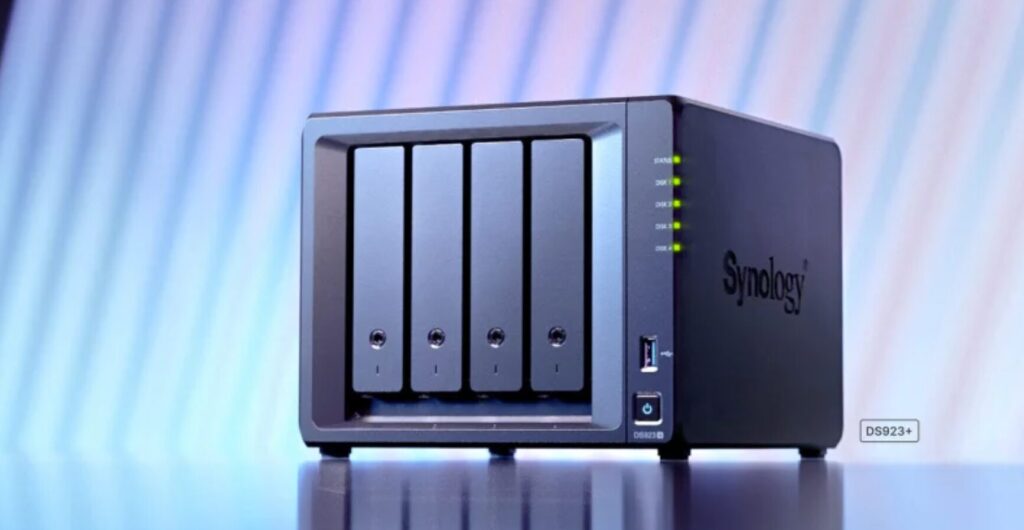
在群晖NAS中,启用SMB共享极为便捷。你仅需遵循以下步骤激活并配置SMB协议,以确保设备在局域网内能够高效共享文件。群晖大幅简化了我们的生活,使数据处理更加高效,同时在数据安全和时间管理上为我们提供了显著改善,极大丰富了我们的生活体验。
然而,在使用过程中也存在诸多注意事项,例如,我在将其作为PT下载电影的存储设备时,发现删除的电影文件无法恢复,但最终找到了解决方案。遇到类似问题的用户也可以尝试解决。
To view, please open this page in an internet environment with access to YouTube.
A full graphic description is provided below and can be read on.
Step 1: Enter the GroupHi control panel
- Log on to the DSM operating system of Group Sunshine.
- In the left menu bar, clickcontrol panelThe
Step 2: Open “File Services” settings
- In the Control Panel, locate and clickDocumentation servicesThe
- In the File Service Settings screen, selectSMB/AFP/NFSTab.
Step 3: Enable SMB Services
- Under the SMB tab, make sure that theEnable SMB servicesoption is checked.
- Depending on the requirements, you can choose different versions of the SMB protocol. In general, SMB2 and SMB3 will provide better performance and security. It is recommended to useSMB2/SMB3, unless there is a compatibility requirement.
- You can click “Advanced Settings” for more detailed configuration, such as setting up workgroups, enabling user privileges, and so on.
Step 4: Configure Shared Folders
- You can find more information on theshared fileSelect the folder you want to share in or create a new folder to share.
- In the folder settings, selectshared fileand set the appropriate permissions for them. You can choose to allow access to specific users or open it to all users.
Step 5: Apply and save settings
- After completing the settings, clickappliancebutton to save the changes.
- Now, your GroupHi NAS device will have enabled SMB file sharing, and Windows, macOS or Linux devices on the LAN can access the shared folder via the SMB protocol.
Step 6: Accessing Shared Folders
- On Windows systems, you can type in File Explorer
\\\\ Group Sunshine IP Address\ Shared Folder Nameto access the shared folder. - In macOS, you can open the “Go To” menu via Finder, select “Connect to Server”, and enter
smb://Qunhui IP address/shared folder nameto connect. - In Linux, you can access shared folders using a file manager or the command line with commands like
//Qunhui IP address/shared folder nameThe
summarize
Enabling SMB sharing is very simple in GroupHi NAS, just go to File Service Settings in Control Panel, enable SMB service and configure the shared folder.
Samba (SMB) It is a widely compatible file sharing protocol for Windows, macOS and Linux, but you may encounter lagging problems when transferring large files, especially when playing HD Blu-ray originals.
NFS The protocol is superior in large file transfers and is suitable for Linux and macOS users, but there may be problems with Chinese directory garbling and the support is not as good as SMB in the Windows environment.
Qunhui's settings to turn on SMB Main Menu-Console-File Service-smb

Qunhui's settings to enable NFS Main Menu-Console-File Services-NFS
In LAN, using different protocols to mount and play files can affect the speed and smoothness of data transfer. While you may encounter some Chinese directory garbling issues when using the NFS protocol on Windows 10, the NFS protocol tends to be more advantageous than the SMB protocol in some other devices and applications, especially when playing large files.
Speed Comparison of NFS and SMB Protocols
The NFS protocol usually provides higher transfer speeds and lower latency in LAN environments, especially when playing large files such as high-definition videos or high-definition Blu-ray discs, etc. NFS is a protocol designed for Unix and Unix-like systems and is optimized for the transfer of large files, which can effectively avoid the problems of lagging or “slideshow” effects that occur with the SMB protocol in the playback of large files. The SMB protocol is optimized for large file transfers and can effectively avoid the lag or "slideshow" effect that occurs when playing large files. Therefore, if you often need to play large video files (such as high-definition Blu-ray discs), using the NFS protocol to mount shared folders can significantly improve the smoothness of playback.
LAN playback not smooth? Try NFS protocol
If you experience lag or delay when playing video over SMB protocol in LAN, especially when playing large files, it is recommended to try using NFS protocol for mounting.NFS has higher transfer speeds and is better able to handle the transferring needs of large files, so you can achieve a smoother experience when playing video.
For example, using theKODIWhen streaming media applications such as KODI, mounting shared folders via NFS is usually more stable than the SMB protocol. Although the NFS protocol may cause Chinese directory garbling issues on Windows 10 systems, the advantages of NFS are especially obvious on media playback devices like KODI. You can mount shared folders via NFS and play HD Blu-ray originals directly from an NFS source for better playback.
How to mount using the NFS protocol
- Enable the NFS service in the GroupHi NAS:
- Log in to the CDM DSM system and enter thecontrol panelThe
- strike (on the keyboard)Documentation servicesand then selectNFSTab.
- tickEnabling the NFS service, and set permissions and access controls for shared folders as needed.
- Mount the NFS share on the device:
- For those using devices such as KODI, you can set up an NFS shared mount point for file access. In the KODI's “File” menu, chooseAdd Video Sourceand then selectNFSprotocol to make the connection.
- Enter the IP address and the path of the shared folder of QunHui NAS to complete the mount operation.
- Play the file:
- After mounting via NFS, select the video files in the shared folder for playback to experience more efficient and smooth playback.
Pros and Cons of SMB vs. NFS
| specificities | SMB | NFS |
|---|---|---|
| compatibility | Suitable for Windows, macOS, Linux and other systems | Mainly for Unix-like systems, poor Windows support |
| transmission speed | Slower, especially during large file transfers | High speed, suitable for large file transfer |
| procrastinate | Higher, may cause playback lag | Low latency for smoother playback of large files |
| Chinese Catalog Support | Better, support Chinese directory name | May appear garbled, especially in Windows environments |
| Configuration complexity | Relatively simple configuration | Slightly more complex to configure, especially in Windows environments |
Detailed YouTube video tutorials



 Lan Xiaobo (1952-1997), PRC politician Protocol Not Supported The client and server do not support the general SSL protocol version or cipher suite. This error is prompted
  kittyzero Hi, https://www.youtube.com/watch?v=eJUWQqCKfW0 I set it up and the extranet won't go out, not sure why, emailed you, thanks.
  ericjin211 Hi, tried this solution and found that foreign sites going through openclash proxy will not go through adguardhome, what could be the problem 🤔
  666 Tried the copy, no other problems, dns test has Hong Kong and Japan, not sure if it's a leak or not
  Loong2004 Hello, I feel that the program is very good, but the white hand is handicapped, can you have paid remote guidance, thank you!
  Chinese
  English
  Spanish
  French
  German
  Japanese
  Portuguese
  Italian
  Dutch
Dutch