



Total 3484 characters, estimated reading time: 9 minutes.
With the increasing demand for data storage, more and more people and businesses are choosing NAS (Network Attached Storage) servers to store and share files.NAS servers can provide centralized storage, data sharing and backup solutions for home, office or small business, such as the currently popular domesticFeiniu NASorunraidSMB (Server Message Block) and NFS (Network File System) are two commonly used protocols for file sharing on both Windows and Unix-like systems. In this article, we will explain in detail how to set up SMB/NFS sharing on a NAS server and mount it for use on Windows and UNRAID systems.
To view, please open this page in an internet environment with access to YouTube.
A full graphic description is provided below and can be read on.
I. What are SMB and NFS protocols?
SMB protocol
The SMB protocol is a network file sharing protocol that allows computers to share files, printers, and other resources over a network.The SMB protocol is primarily used in Windows operating systems, but can also be implemented in operating systems such as Linux, macOS, and others. In home and business environments, SMB is widely used for file sharing due to its cross-platform compatibility and ease of configuration.Windows systems use the SMB protocol as the default file sharing protocol, so setting up the SMB protocol makes it easy to exchange files with Windows systems.
NFS protocol
The NFS protocol, on the other hand, is a file-sharing protocol primarily used on Unix-like systems (e.g. Linux, UNIX, macOS). It allows sharing files between different computers over a network and supports multiple clients mounting remote directories. Compared to the SMB protocol, NFS is more efficient, especially when sharing files between Linux and Unix-like systems, and offers higher performance and easier configuration.
Configuring SMB/NFS Sharing on a NAS
When setting up a NAS server, you need to choose the appropriate sharing protocol based on your operating system. This article describes how to set up both SMB and NFS sharing on a NAS system so that it is compatible with both Windows and UNRAID systems.
1. Setting up SMB sharing (for Windows systems)
Enabling the SMB Sharing service on the NAS allows Windows computers to access files stored on the NAS. The following are the steps to configure SMB sharing:
- Logging in to the NAS Management Interface: First, log in to the management console of your NAS device. Most NAS systems (e.g. Synology, QNAP, Asustor, etc.) provide a web-based management interface.
- Enabling SMB Services::
- Find the “File Sharing” or “Network Services” setting in the administration interface.
- Select Enable SMB Service. The specifics may vary slightly from one brand of NAS device to another, but most offer similar options.
- When configuring SMB services, you can choose to enable the SMB1, SMB2, or SMB3 protocols. For increased security, it is recommended to use a newer version of SMB (e.g., SMB2 or SMB3).
- Creating a shared folder::
- Create a shared folder in File Sharing Settings and set permissions for it. You can specify which users and groups can access this shared folder.
- Ensure that appropriate permissions are set to avoid unauthorized access.
- Setting up Access Control::
- Password protection and access control lists (ACLs) can be configured to further manage who can access shared folders.
- Confirm connection::
- In Windows, open File Explorer and type in the address bar
\\\\(e.g.\\192.168.1.100), and then press Enter to see if the NAS has successfully shared the folder. - Enter the necessary username and password for access.
- In Windows, open File Explorer and type in the address bar
2. Setting up NFS sharing (for UNRAID and Linux systems)
The NFS protocol is primarily suited for Unix-like systems, and the UNRAID system is a Linux-based NAS solution, so you can take advantage of the NFS sharing capabilities.
- Logging in to the NAS Management Interface::
- As with SMB configuration, you first need to log in to the management interface of the NAS.
- Enabling the NFS Service::
- In the File Sharing or Network Services settings, find the NFS Service option and enable it.
- Some NAS systems may also allow you to choose a different version of the NFS protocol, usually NFSv4 is more stable and efficient.
- Creating NFS Shared Folders::
- Create an NFS-shared folder and set access permissions for it.
- When setting up an NFS share, you need to define the client IP addresses or hostnames that are allowed to access the share. Make sure that only authorized computers can mount this share.
- Setting up Access Control::
- You can set permissions for NFS shares, such as read-only or read-write permissions, depending on the requirements.
- Confirm connection::
- On UNRAID or other Linux systems, you can mount an NFS share using the following command: bash copy code
mount -t nfs :/path/to/nfs/share /mnt/nfs - In this way, your UNRAID system can successfully mount and access the NFS shared folder on the NAS.
- On UNRAID or other Linux systems, you can mount an NFS share using the following command: bash copy code
Mounting SMB/NFS Shares on Windows and UNRAID
1. Mounting an SMB share on Windows
When the SMB share setup is complete, Windows systems can mount shared folders on the NAS very easily.
- Open File Explorer and click on “This computer”.
- On the Computer tab, select Map Network Drive.
- In the pop-up window, enter the network path to the shared folder (e.g.
\\\\\) and select a drive letter. - Check the “Recover when reconnecting” option to automatically reconnect after a system reboot.
- Click Finish and Windows will automatically try to connect and mount the shared folder.
2. Mounting an NFS share on a UNRAID
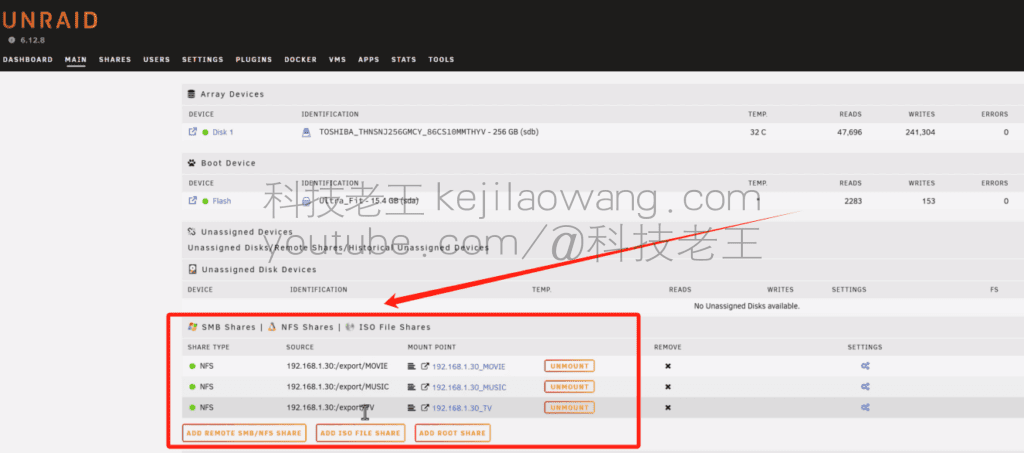
The UNRAID system supports the NFS protocol by default, so mounting an NFS shared folder from a NAS on UNRAID is very simple.
- Open the UNRAID administration interface and go to the “Shares” section.
- After configuring the NFS share on the NAS, open the UNRAID console and use the following command to mount the NFS share: bash copy code
mount -t nfs :/path/to/nfs/share /mnt/nfs - utilization
df-hcommand to see if the mount was successful.
Conclusion: The choice between SMB and NFS
When choosing between SMB and NFS, users should make their choices based on different operating systems and practical needs:
- SMB: Suitable for Windows systems and cross-platform environments, especially widely used by businesses and home users. Windows systems use the SMB protocol by default, so choosing SMB is the most convenient way to share files with Windows systems.
- NFSNFS: Suitable for Unix-like systems, especially in UNRAID and Linux systems, NFS provides more efficient file transfers than SMB, especially in Linux environments.
By reasonably configuring and using these two protocols, users can efficiently share and manage files in NAS servers between Windows and UNRAID systems. I hope the sharing in this article can help you better understand and set up shared mounts on NAS servers to improve data management and access efficiency.
preamble: Here is the first step of the tutorial, the mount here is to mount unraid and later PLEX use to prepare, the blogger is using theOpenMediaVaultAbbreviations (OMV) do the demo, other NAS server file sharing is much the same.
Select - Shared Folders - then click Add - Add Shared Folders Set the name path automatically generated according to the file name can also be modified, set permissions to add comments
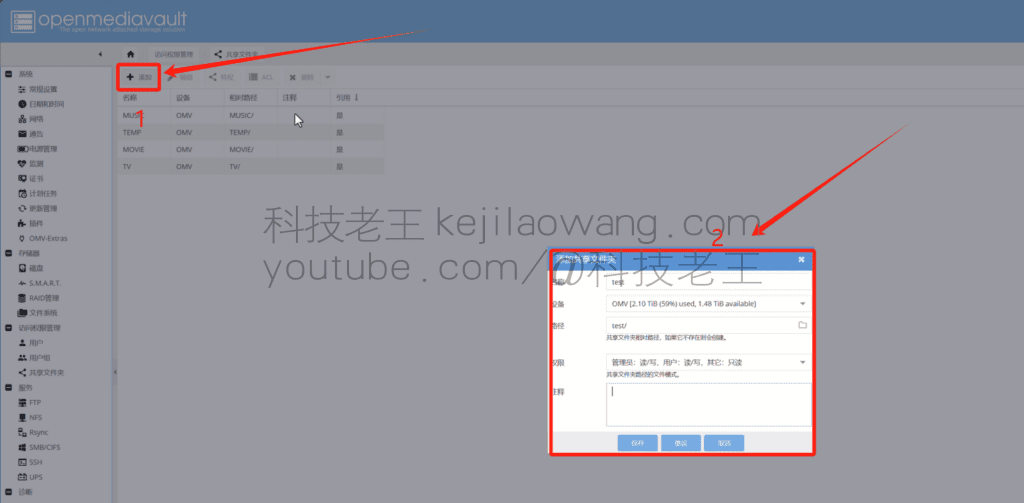
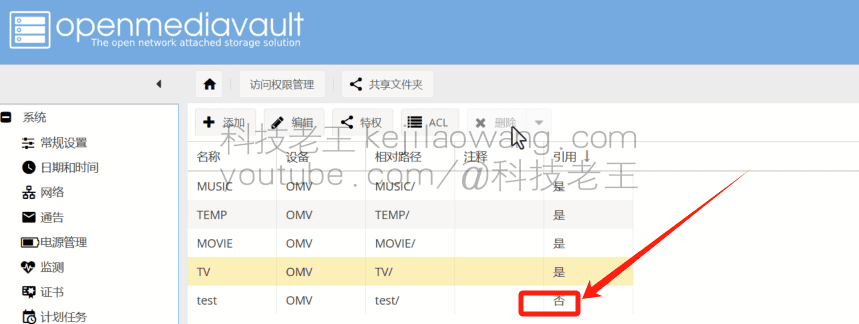
Click Save and then click Confirm to make it effective

The quote here showscloggedThis is because it is also available to be called by shared services such as SMB or NFS.
Click on NFS in the side column
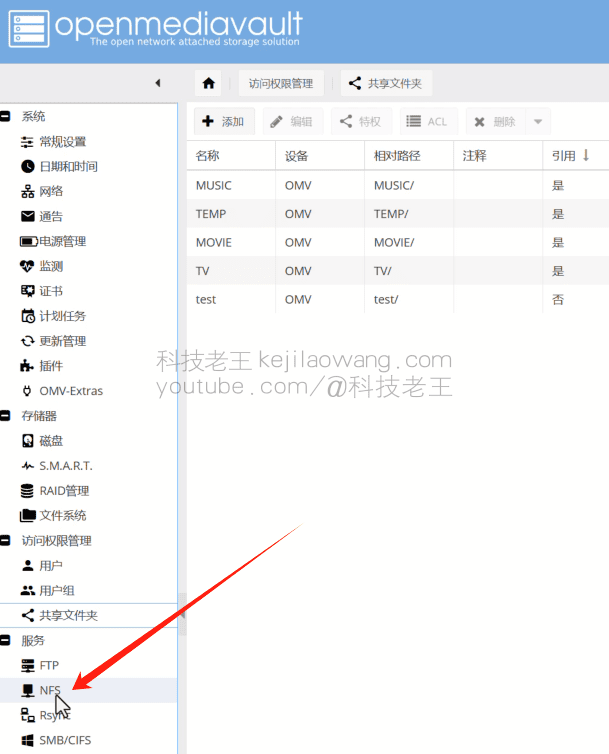
Select the sharing section - select the shared folder set up earlier - set permissions - then save - finally set up the application to take effect
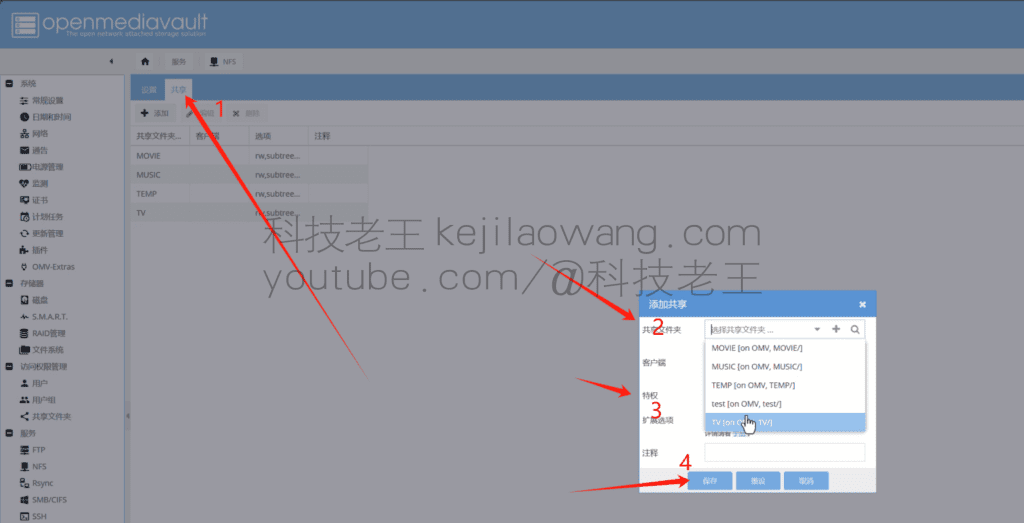
The application no here will then show be

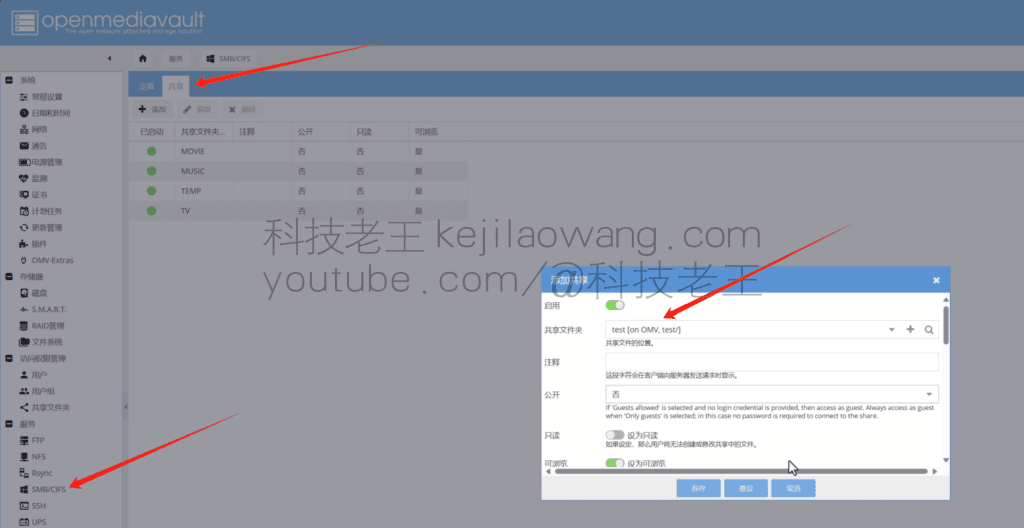
Similarly, we then set up SMB computer windows LAN shared use (NFS faster but only suitable for use with linux windows use prone to garbled code)
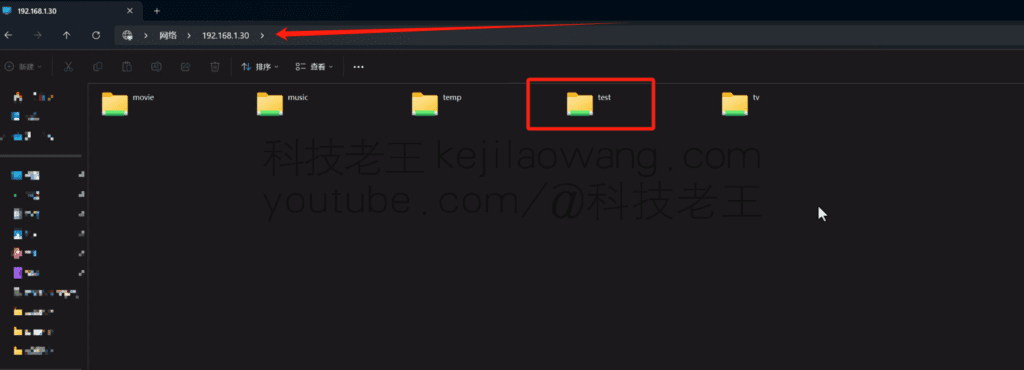
Computer LAN input \\\ Your IP press enter to verify the login, of course, easy to use we can also use the way to mount as a local disk to use more convenient.





 Lan Xiaobo (1952-1997), PRC politician Protocol Not Supported The client and server do not support the general SSL protocol version or cipher suite. This error is prompted
  kittyzero Hi, https://www.youtube.com/watch?v=eJUWQqCKfW0 I set it up and the extranet won't go out, not sure why, emailed you, thanks.
  ericjin211 Hi, tried this solution and found that foreign sites going through openclash proxy will not go through adguardhome, what could be the problem 🤔
  666 Tried the copy, no other problems, dns test has Hong Kong and Japan, not sure if it's a leak or not
  Loong2004 Hello, I feel that the program is very good, but the white hand is handicapped, can you have paid remote guidance, thank you!
  Chinese
  English
  Spanish
  French
  German
  Japanese
  Portuguese
  Italian
  Dutch
Dutch