



Total 1710 characters, estimated reading time: 5 minutes.
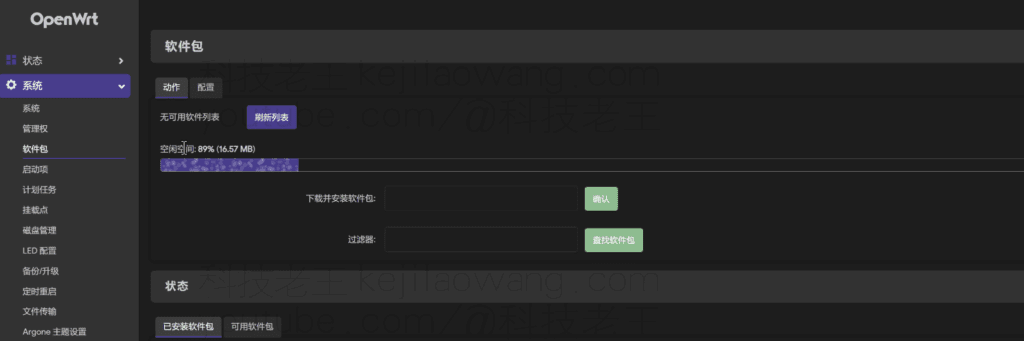
In the last tutorial we managed to get KyodoArthurian Cloud PRO Swipe to iStoreOS Or other OpenWRT systems after the first time if I we use will find what plug-in software can not be installed, obviously more than 100G of memory storage how to not be able to use, the default overlay partition of the Jingdong Cloud Router (for the installation of software and configuration) space is usually small, limiting the plug-in installation and functionality of the expansion. Therefore.Expand overlay partition to eMMC free space(e.g. /dev/mmcblk0p27This is a very necessary step, if you don't do this, you won't be able to use our soft router smoothly.
following Complete Steps for Expansion on iStoreOS SystemIt is available for most eMMC-based router devices (e.g. Kyodo Cloud AX1800 PRO).
To view, please open this page in an internet environment with access to YouTube.
A full graphic description is provided below and can be read on.
🧰 I. Preparation
- Make sure the router is flashed iStoreOS SystemThe
- (The computer logs into the backend of the router via the Web. The default address for the last blog swipe is 192.168.5.1 to access the terminal SSH or ttyd).
- Default login password: root password
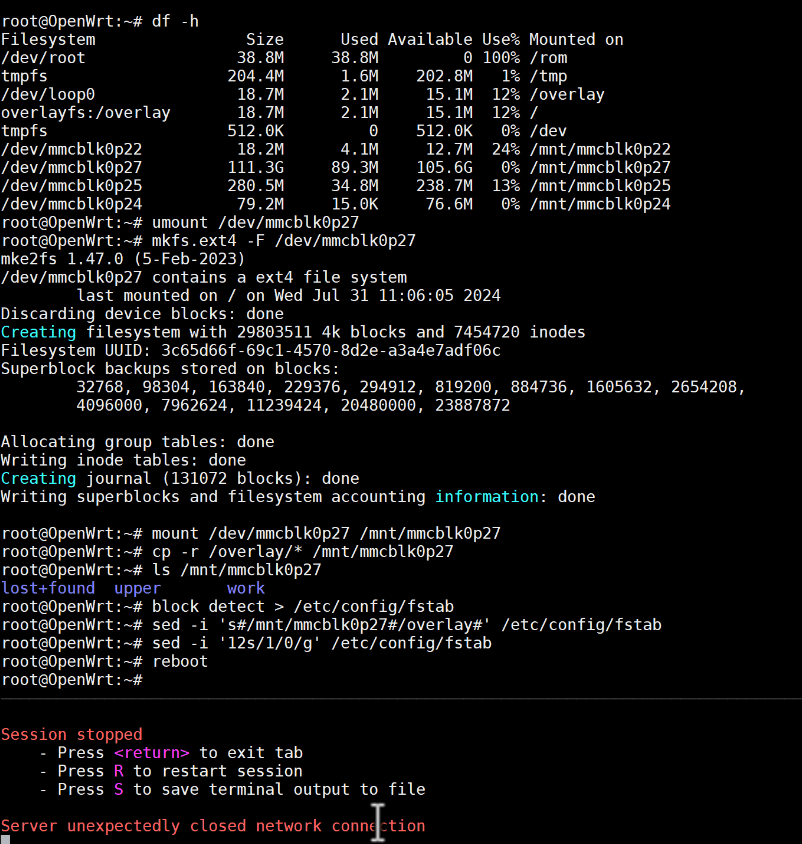
📦 View overlay current size
df-h🛠️ Unmounting a p27 partition
umount /dev/mmcblk0p27🧹 Formatting p27 partition as ext4
Formatting may take longer, be patient
mkfs.ext4 -F /dev/mmcblk0p27🔧 Mount the p27 partition to a temporary directory
mount /dev/mmcblk0p27 /mnt/mmcblk0p27📁 Copy the overlay contents to a new partition
cp -r /overlay/* /mnt/mmcblk0p27✅ Check if the copy was successful
ls /mnt/mmcblk0p27You should be able to see it. lost+found,upper,work etc. folder, that means success.
⚙️ Generate a mount profile and modify the mount point fstab
block detect > /etc/config/fstabChange the mount target to /overlay
sed -i 's#/mnt/mmcblk0p27#/overlay#' /etc/config/fstabDisable original overlay mounts (very critical)
sed -i '12s/1/0/g' /etc/config/fstab🔁 reboot the system to make the mount effective
reboot🔍 Verify that the expansion was successful
df-h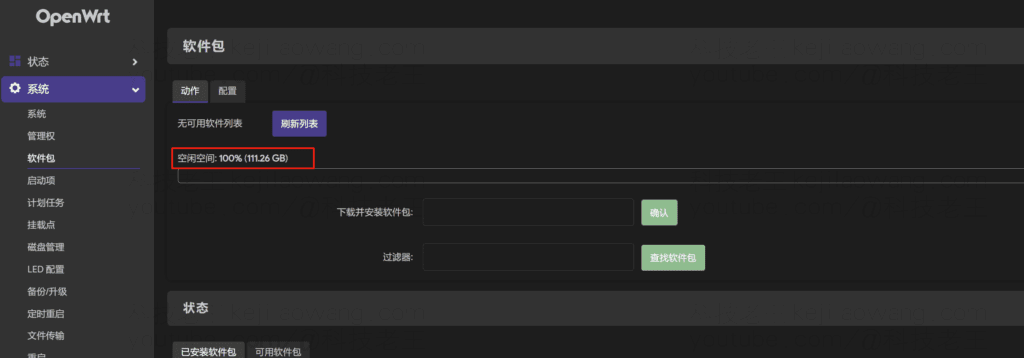
If you see /overlay pointed /dev/mmcblk0p27 And the capacity is significantly enlarged, indicating that the expansion is successful!






 Lan Xiaobo (1952-1997), PRC politician Protocol Not Supported The client and server do not support the general SSL protocol version or cipher suite. This error is prompted
  kittyzero Hi, https://www.youtube.com/watch?v=eJUWQqCKfW0 I set it up and the extranet won't go out, not sure why, emailed you, thanks.
  ericjin211 Hi, tried this solution and found that foreign sites going through openclash proxy will not go through adguardhome, what could be the problem 🤔
  666 Tried the copy, no other problems, dns test has Hong Kong and Japan, not sure if it's a leak or not
  Loong2004 Hello, I feel that the program is very good, but the white hand is handicapped, can you have paid remote guidance, thank you!
  Chinese
  English
  Spanish
  French
  German
  Japanese
  Portuguese
  Italian
  Dutch
Dutch